eBay Listing Profiles let you save reusable templates for your eBay listings. Instead of selecting the same listing settings every time you publish a product, you can create a profile once and reuse it across multiple listings.
Each profile combines your listing configuration, business policies, category settings, location settings, and default item information into a single template.
When you publish products from PIM, assigning an eBay Listing Profile ensures every listing uses the correct settings automatically.
What are eBay Listing Profiles?
eBay listing profiles are templates that store all the common settings for your eBay listings, including:
Listing Configuration
Listing type (Auction/Fixed Price), duration, handling time, and category settings.
Business Policies
Pre-selected shipping, return, and payment policies that you've created in eBay.
Category & Condition
Default eBay category and item condition settings for consistent listing placement.
Site Settings
eBay site, country, currency, and postal code configuration for proper listing placement.
Prerequisites
Before creating eBay listing profiles, make sure you have:
Business Policies Available in PIM
Accessing eBay Profiles
To manage your eBay listing profiles in PIM:
Navigate to eBay Profiles
From your PIM dashboard, go to the eBay section and select "eBay Profiles" to view all your existing profiles.
View Existing Profiles
You'll see a list of all your current eBay profiles with their titles, listing types, creation dates, and available actions.
Add New Profile
to create a new reusable listing profile.
eBay Profiles List Page
This is the main page where you can view and manage all your eBay listing profiles:
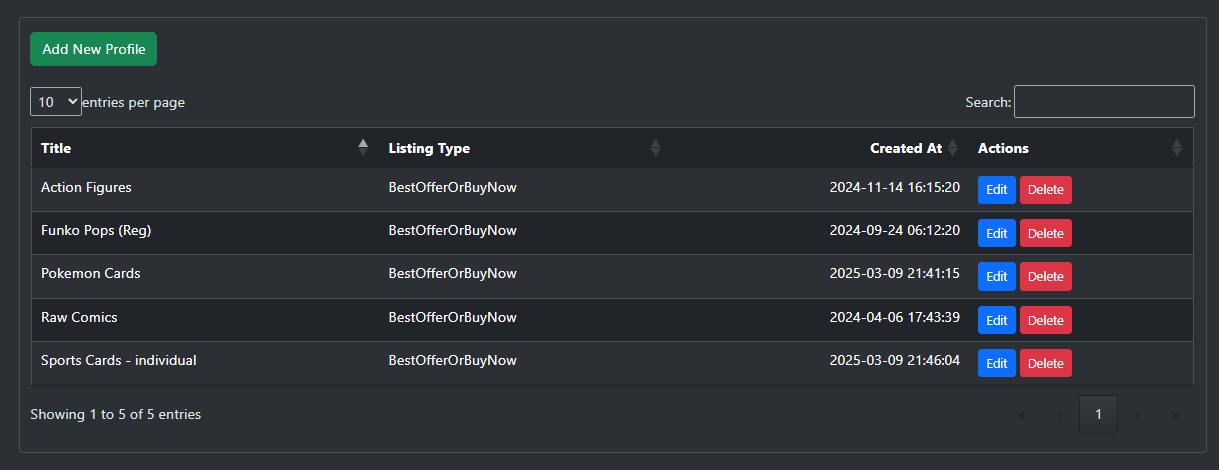
The eBay profiles management page showing existing profiles with options to add, edit, or delete profiles.
Creating a New eBay Profile
Follow these steps to create a new eBay listing profile:
Start Profile Creation
Click the "Add New Profile" button on the eBay Profiles page to open the profile creation form.
Profile Identification
Enter a descriptive Profile Title (e.g., "Action Figures - Fixed Price") and optionally add a Profile Description to help you identify this profile's purpose.
Listing Configuration
Configure the basic listing settings:
- Listing Type: Choose between "Auction" for time-based bidding or "Fixed Price Item" for Buy It Now Or Best Offer listings
- Listing Duration: Select how long your listings will run (e.g., "GTC" for Good 'Til Cancelled)
- Listing Handling Time: Enter the number of business days you need to ship items after payment
Category Settings
Set up your eBay category preferences:
- Primary eBay Category: Click "Select Category" to choose the main category for your listings
- Category Specific Type: Add additional category-specific details if applicable (optional)
Assign Business Policies
Select your pre-created eBay business policies:
- Shipping Policy: Choose your preferred shipping policy from the dropdown
- Return Policy: Select your return policy
- Payment Policy: Pick your payment policy (usually "eBay Payments")
Item Details
Configure default item settings:
- Item Condition: Set the default condition (New, Used, etc.)
- Postal Code: Enter your shipping postal code
Location Settings
Complete your location information:
- eBay Site: Select your eBay marketplace (e.g., "US" for eBay.com)
- Country: Choose your country
- Currency: Select your listing currency (e.g., "USD")
Save Profile
Click the "Create" button to save your new eBay listing profile. You'll be redirected back to the profiles list where you can see your new profile.
Add New eBay Profile Form
The profile creation form with all the necessary fields for configuring your eBay listing template:
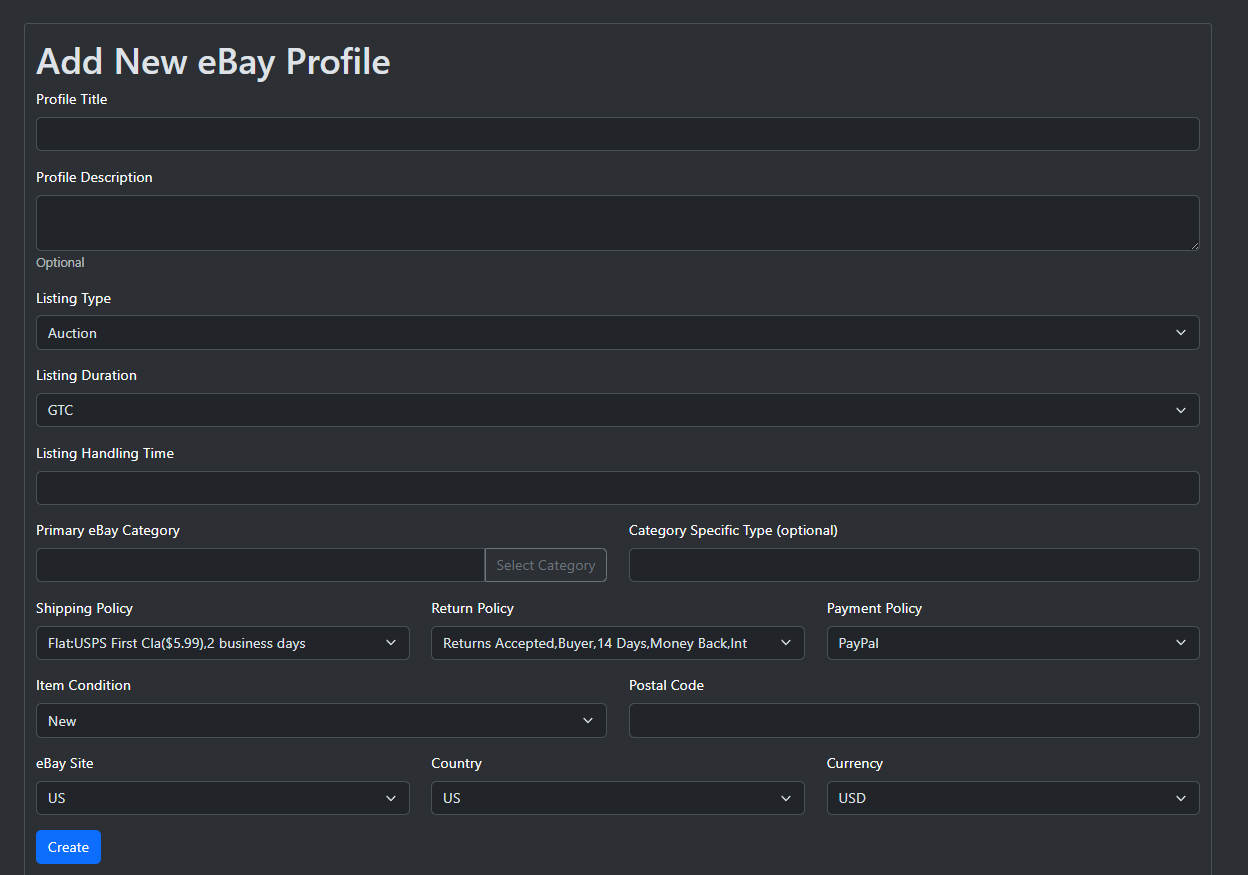
The eBay profile creation form showing all configuration options including business policies, category selection, and location settings.
Profile Examples by Product Type
Here are some recommended profile configurations for different types of collectibles:
Comic Books Profile
Type: Fixed Price Item, Duration: GTC, Category: Comics & Graphic Novels, Condition: Used (varies by comic grade)
Action Figures Profile
Type: Fixed Price Item, Duration: GTC, Category: Action Figures & Accessories, Condition: New or Used
Funko Pops Profile
Type: Fixed Price Item, Duration: GTC, Category: Funko, Condition: New (unless box damage)
Trading Cards Profile
Type: Auction or Fixed Price Item, Duration: 7 days (auction) or GTC, Category: Sports/Non-Sports Trading Cards
These are examples only. Customize your profiles based on your inventory and business needs.
Managing Existing Profiles
Once you've created eBay profiles, you can manage them from the profiles list:
Edit Profiles
Click the "Edit" button next to any profile to modify its settings. You can update policies, categories, or any other configuration options.
Delete Profiles
Use the "Delete" button to remove profiles you no longer need. Be careful as this action cannot be undone.
Search and Filter
Use the search function to quickly find specific profiles, especially useful when you have many profiles created.
Using Profiles for Listing Products
eBay Listing Profiles are assigned from the Product Edit page. Select the appropriate profile before publishing the product to eBay.
Product Assignment
When adding or editing products in PIM, assign the appropriate eBay profile to each product based on its type and category.
Bulk Operations
You can assign the same profile to multiple products of the same type for efficient bulk listing operations.
Automatic Application
When you list a product to eBay, PIM will automatically apply all the settings from the assigned profile, ensuring consistency.
Best Practices
Create Category-Specific Profiles
Make separate profiles for different product categories (comics, figures, cards) to ensure proper categorization and policies.
Realistic Handling Times
Set handling times you can consistently meet. Faster handling times can improve search ranking but must be achievable.
Descriptive Names
Use clear, descriptive names for your profiles that indicate the product type and key settings (e.g., "Comics - 30 Day Returns").
Regular Reviews
Periodically review and update your profiles to ensure they reflect current business practices and eBay policy changes.
Troubleshooting
Business Policies Not Loading
If your eBay business policies don't appear in the dropdowns, check your eBay authorization and try refreshing the connection in PIM settings.
Category Selection Issues
If you can't find the right category, make sure you're selecting from eBay's current category structure. Some categories may have been updated or merged.
Profile Won't Save
Ensure all required fields are completed and that your business policies are properly configured in eBay before creating the profile.
Profile Not Working for Listings
If a profile doesn't work when listing products, verify that all associated business policies are still active in your eBay account.