eBay Business Policies help standardize your listings by creating reusable templates for payment, return, and shipping settings. These policies ensure consistency across all your listings and make managing your eBay store easier. This guide walks you through creating each policy step by step.
PIM uses your eBay Business Policies when publishing listings to eBay. After your policies are created, you can assign them to eBay Listing Profiles so every product you publish automatically uses the correct payment, return, and shipping settings.
Overview
eBay offers three types of business policies that you can create and manage:
Payment Policies
Define how buyers can pay for items, including immediate payment requirements and accepted payment methods.
Return Policies
Set your return terms, including return windows, who pays for return shipping, and refund methods.
Shipping Policies
Configure shipping options, costs, handling time, and domestic/international shipping services.
Open eBay Business Policies
To create eBay business policies, you'll need to access eBay's Business Policies page:
Access Business Policies
Go to eBay Business Policies or navigate through My eBay > Account > Site Preferences > Business Policies.
If you do not have any existing policies, click Create policy in the upper-right corner.
Choose Policy Type
Click on "Create policy" and select the type of policy you want to create (Payment, Return, or Shipping).
eBay Business Policies Management Page
This is the main page where you can view and manage all your business policies:
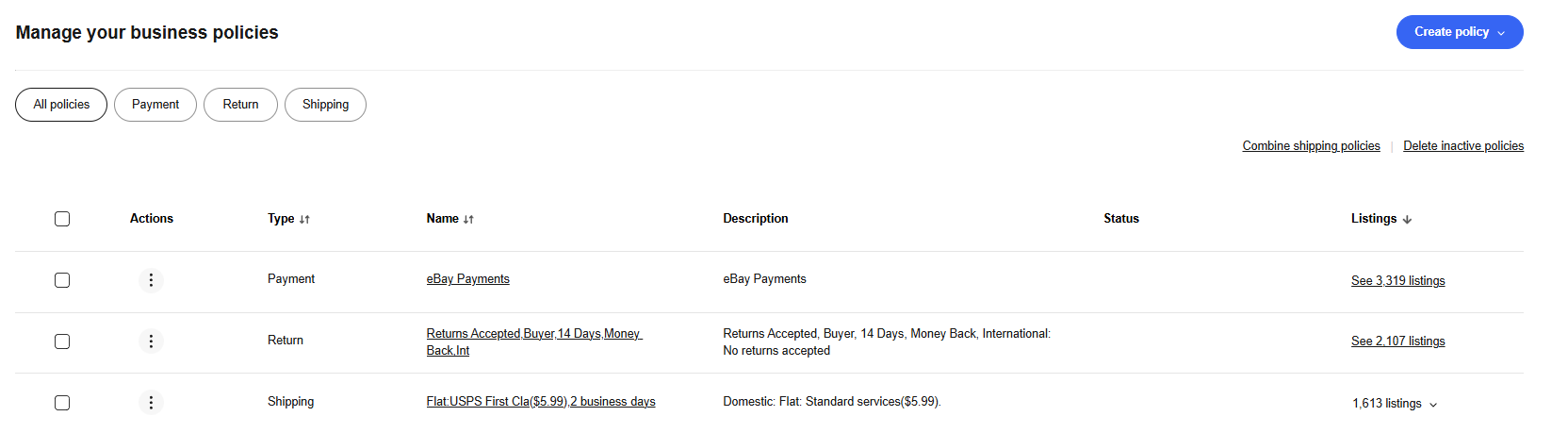
The eBay Business Policies management interface showing existing policies and the Create policy button.
Creating a Payment Policy
Payment policies define how buyers can pay for your items and whether immediate payment is required.
Policy Name and Description
Enter a descriptive name for your payment policy (e.g., "Immediate Payment Required") and optionally add a description to help you identify this policy later.
Payment Methods Managed by eBay
Check "Require immediate payment when buyer uses Buy It Now" if you want buyers to pay immediately for fixed-price listings.
Optional Offline Payment Methods
Select any offline payment methods you accept, such as Cash on Pickup, Check, or Money Order. These are typically used for local pickup items.
Payment Policy Creation Form
Here's what the payment policy creation form looks like:
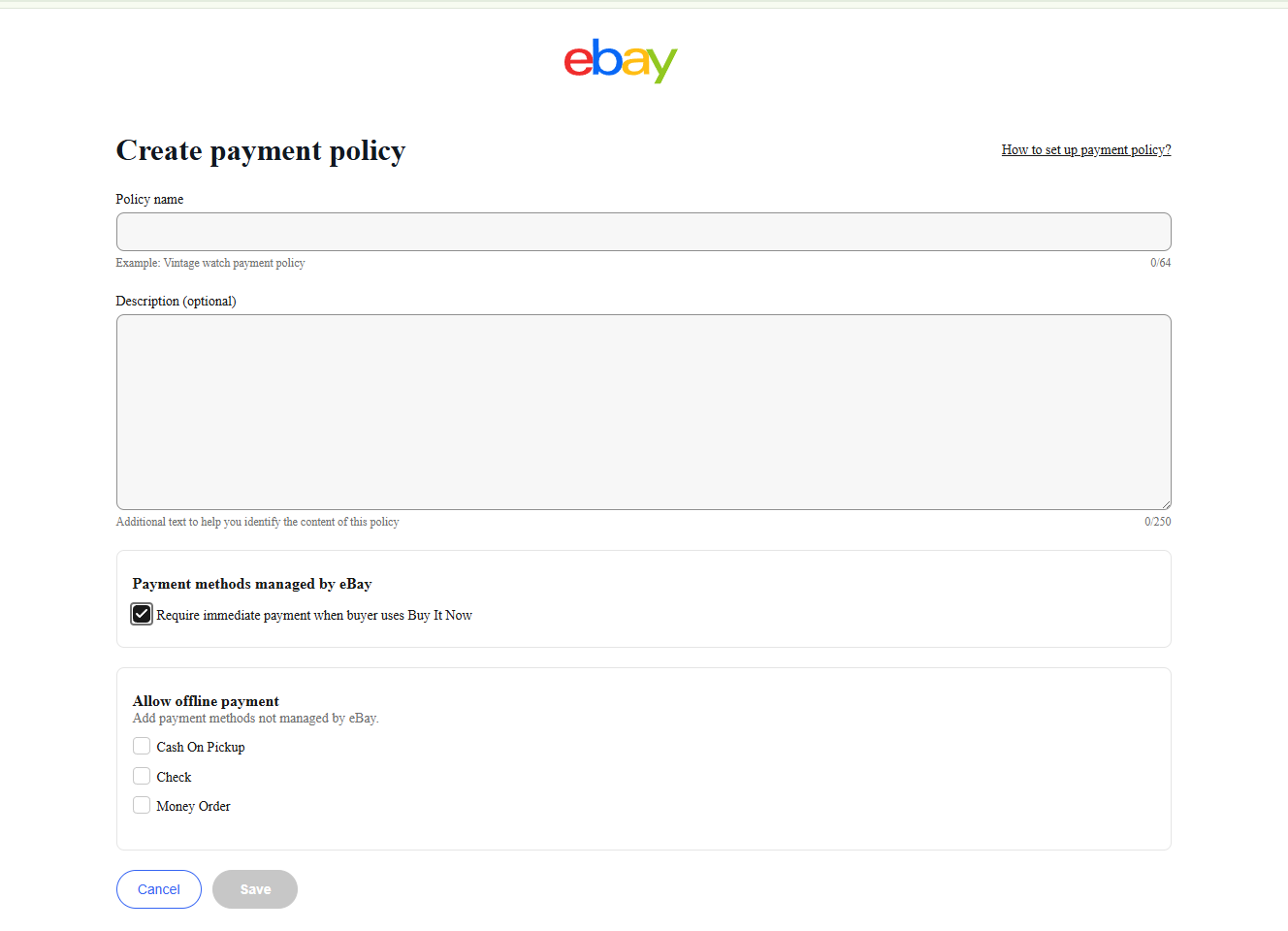
The payment policy creation form showing policy name, payment methods, and offline payment options.
Creating a Return Policy
Return policies set the terms for how buyers can return items if they're not satisfied.
Policy Name and Description
Enter a clear name for your return policy (e.g., "30 Day Returns Accepted") and add a description if needed.
Domestic Returns
Configure your domestic return settings:
- Accept returns: Toggle on to allow returns
- Return window: Choose how long buyers have to return items (14, 30, or 60 days)
- Return shipping paid by: Select who pays for return shipping (Buyer or Seller)
- Refund method: Choose how you'll refund buyers (Money back, Exchange, etc.)
International Returns
Decide whether to accept returns from international buyers. You can set different terms for international returns or disable them entirely.
Return Policy Creation Form
The return policy form allows you to set detailed return terms:
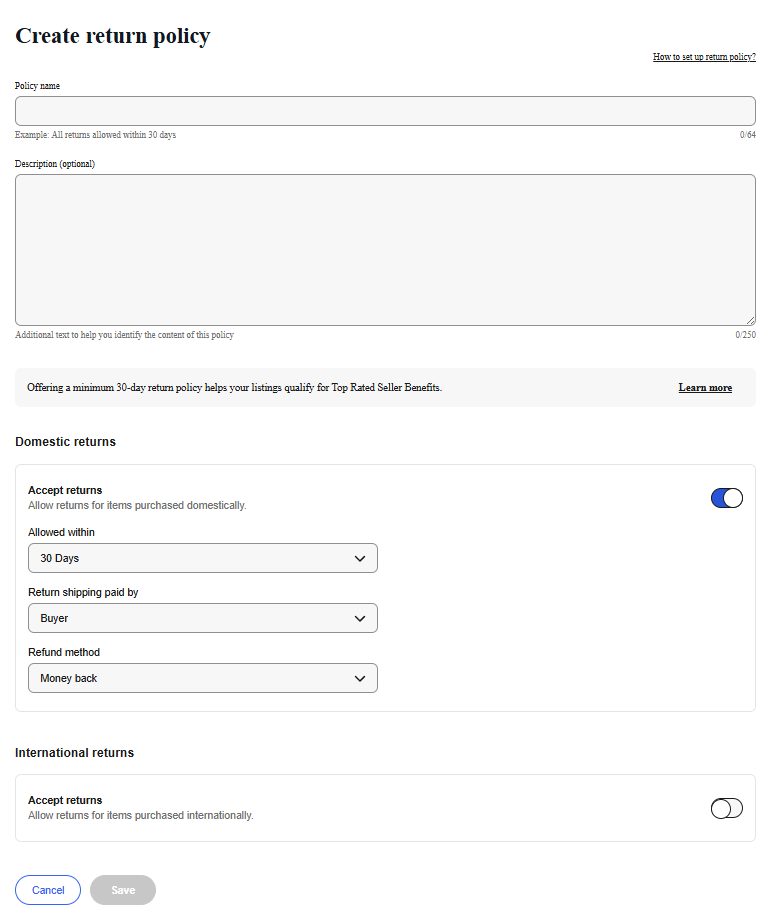
The return policy creation form showing domestic and international return settings.
Creating a Shipping Policy
Shipping policies define how you'll ship items, including costs, handling time, and available shipping services.
Policy Name and Description
Enter a descriptive name (e.g., "Fast Domestic Shipping") and optional description for your shipping policy.
Shipping Method
Choose your primary shipping method. "Standard shipping: Small to medium items" is suitable for most collectibles.
Most comic book sellers use Standard Shipping as their primary shipping method.
Domestic Shipping
Configure your domestic shipping options:
- Cost type: Choose between flat rate, calculated, or freight shipping
- Shipping service: Select carriers and service levels (USPS, UPS, FedEx)
- Additional services: Add extra shipping options like expedited delivery
International Shipping
Set up international shipping if you want to sell globally. eBay's International Shipping program can handle customs and international delivery for you.
Local Pickup and Preferences
Enable local pickup if you allow buyers to collect items in person, and set your handling time (how long before you ship items).
Shipping Policy Creation Form
The shipping policy form has multiple sections for comprehensive shipping setup:
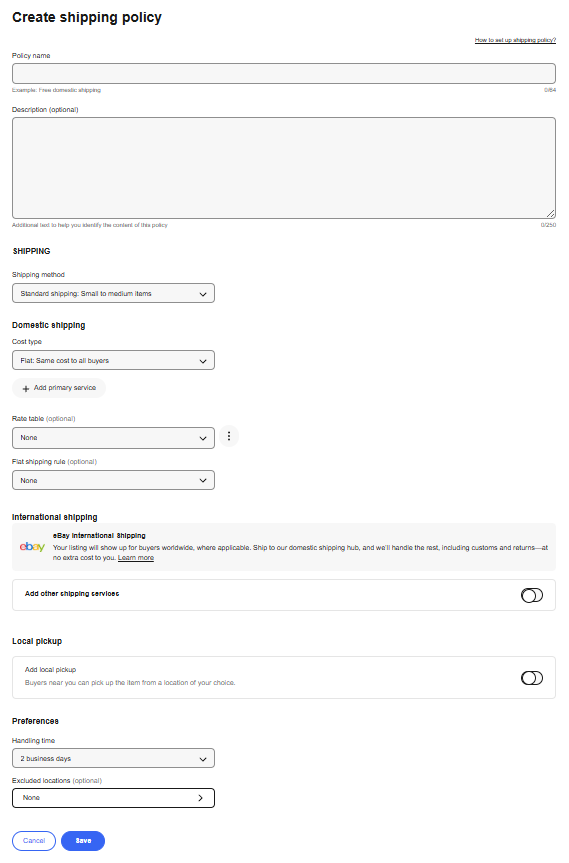
The shipping policy creation form showing domestic shipping, international options, and local pickup settings.
Best Practices
Use Descriptive Names
Name your policies clearly so you can easily identify them when creating listings (e.g., "Comics - Immediate Payment" instead of "Policy 1").
Create Multiple Policies
Consider creating different policies for different product types or situations (e.g., separate shipping policies for small and large items).
Regular Updates
Review and update your policies regularly to ensure they reflect current shipping costs, return preferences, and business practices.
Seller Protection
Align your policies with eBay's seller protection programs and best practices to minimize disputes and maximize protection.
Using Policies in PIM
Once you've created your eBay business policies, you can use them in PIM when setting up your eBay listing profiles:
Sync Policies
PIM will automatically fetch your eBay business policies when you authorize your eBay account.
Create eBay Profiles
In PIM, create eBay listing profiles and select the appropriate business policies for each profile type.
Apply to Products
When listing products, assign the appropriate eBay profile, and your business policies will be automatically applied.
Troubleshooting
Policy Not Saving
Ensure all required fields are completed and that shipping costs are realistic. eBay may reject policies with unusually high shipping costs.
Policy Not Available in PIM
If a policy doesn't appear in PIM, try refreshing your eBay connection or re-authorizing your eBay account in PIM settings.
Can't Edit Active Policy
Policies in use by active listings cannot be edited. Create a new policy with your desired settings and update your listings to use the new policy.